You no longer need a laptop or a studio to make AI video. The phone in your pocket can turn a sentence into a clip, animate a photo, and finish it into a post. Here are four tools worth your storage space, and exactly what each one is for.

If you only read one line For the most realistic clips with sound, use the Gemini app with Veo. For cheap, easy, fun generation, use Pika. For real directorial control, use Runway. Then finish everything in CapCut. |
How AI Video Works on a Phone
One idea saves a lot of wasted taps. There are two ways these tools run on a phone, and the better one is often not the app.
Some are native apps you install from the App Store or Google Play. Others are websites you open in your mobile browser. This matters because most strong AI video models are cloud based, so a native app is often just a wrapper around the same servers a browser can reach. Sometimes the smartest move on a phone is to open a tab rather than an app.
The single biggest quality win If your clip is for TikTok, Reels, or Shorts, set the tool to nine by sixteen vertical, at 1080 by 1920, before you generate. Making a square or wide video and cropping it later throws away resolution and ruins your framing. Pick the shape first, then create. |
The Four Tools, in Detail
These four cover the whole job on a phone: generating footage at the highest quality, generating it cheaply, directing it precisely, and finishing it for social. Here is what each one is, how it behaves on a phone, and who it suits.
 | Pick 01 Google Gemini app, with Veo Best for realism plus sound |
iOS and Android | Needs a Google AI plan | Native audio
What it is. Google's main AI assistant app, with the Veo video model from Google DeepMind built in. You give it a sentence or a photo and it produces a short, realistic clip, and unlike most rivals that clip arrives with its own sound. It is the most direct way to reach top-tier video quality from a phone.
On your phone. Install it on iOS or Android, open the create or video option, and describe your scene in plain language. Veo returns a clip with motion and synchronized audio, and you can then refine it with a follow-up request, such as changing the camera angle, adjusting the lighting, or replacing an object. Vertical photos stay vertical, which matters for social.
Standout. Native audio is the headline. Veo generates ambient sound, sound effects, and even lip-synced dialogue in the same pass, something most other tools cannot match. Google is also folding its newer Omni model into the same app, adding image-to-video and prompt-based editing of clips you have already made.
Strengths and limits. It leads on realism, physics, and prompt adherence, and the built-in sound saves a separate step. The trade-offs are that there is no real free video tier, generation is limited to adults, each plan has monthly caps measured in credits, and individual clips are short, usually several seconds, so longer pieces mean stitching.
Best for. Anyone who wants the most believable clips with sound from inside a real app, and who is comfortable paying for a Google AI plan.
Pricing Free, Gemini - $0 Chat and limited use, little to no video Google AI Plus - $7.99/mo Entry tier with limited Veo access Google AI Pro - $19.99/mo Full Veo video, about 1,000 credits, roughly 50 to 100 clips Google AI Ultra - $99.99 to $199.99/mo Highest video limits, 1080p with audio There is no dedicated free video tier, and video generation is limited to adults. Students can often get the Pro plan free for a year. |
 | Pick 02 Runway Best for control |
iOS, Android, web | Free tier, limited | Paid from about $15/mo

What it is. One of the original AI video companies, and the closest thing on this list to a professional creative suite. Its flagship models, in the Gen-4 family, are built for control and consistency, and the app both generates footage and lets you edit it in the same place. It is made for people who want to direct a shot, not just accept whatever a prompt returns.
On your phone. Available on iOS and Android as well as the web. You generate a clip, then trim, mask, color, and steer motion with a brush without leaving the app, and you can lock a character or style across shots using reference images. Because the model lives in the cloud, the mobile web version is often just as capable as the app.
Standout. Genuine directorial control. A motion brush lets you push specific parts of a frame, camera controls set the move, and reference-based consistency keeps a look stable from clip to clip, which is closer to real post-production than most tools reach. Paid plans also let you run other models, including Veo, Kling, and Seedance, from one subscription.
Strengths and limits. The strengths are precision, consistency, and a genuine editing workflow. The limits are a steeper learning curve than Pika or CapCut, a credit system that drains quickly since one second of the top model costs about twenty-five credits, and the highest total cost here once you generate at volume.
Best for. Creators and marketers doing ad-grade or client work who want precision, and who do not mind a steeper learning curve.
Pricing Free - $0 One-time 125 credits, watermarked Standard - $15, or $12 yearly 625 credits a month, watermark-free, 4K Pro - $35, or $28 yearly 2,250 credits a month Unlimited - $95, or $76 yearly 2,250 credits plus unlimited slower generations Credits are the real cost, since one second of the top model uses about 25 of them. Enterprise pricing is custom. |
 | Pick 03 Pika Best for fun on a budget |
iOS app, plus web | Generous daily free credits | Paid from about $8/mo
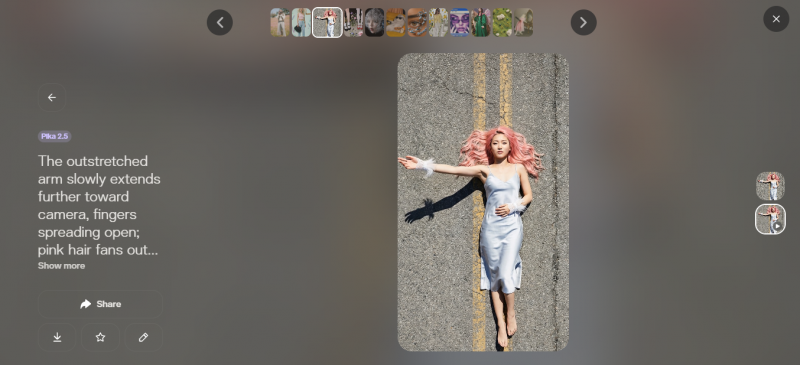
What it is. A friendly, low-cost generator, built on its own Pika model and aimed squarely at fun, fast, short-form video. It is the easiest place on this list for a beginner to start, and it turns text, an image, or an existing clip into a short animated video in well under two minutes.
On your phone. An iOS app plus a web version, with a clean interface and a low entry price. It is especially strong at animating a single still image, and it can even make the person in a photo appear to speak, which makes it a favorite for quick, playful posts.
Standout. Its signature effects. Pikaffects apply physics-style transformations like melt, explode, inflate, and squish, while other tools let you insert or swap objects in a scene, interpolate between a start and end frame, and add audio-driven lip-sync. These effects are what people come to Pika for.
Strengths and limits. It wins on speed, creativity, ease, and price. It trails Runway and Veo on photorealism and on holding a complex scene together, so it is best for short, eye-catching clips rather than long or cinematic work, and watermark-free downloads and commercial rights only unlock on the Pro tier.
Best for. Beginners, tight budgets, and short-form social content, rather than long, cinematic scenes.
Pricing Free, Basic - $0 80 credits a month, 480p, watermarked Standard - $8 yearly, or $10/mo 700 credits, all resolutions Pro - $28 yearly, or $35/mo 2,300 credits, watermark-free and commercial Fancy - $76 yearly, or $95/mo 6,000 credits, fastest processing Watermark-free downloads and commercial rights begin at the Pro tier, so the free and Standard plans are best for personal use. |
 | Pick 04 CapCut Best finisher for everyone |
iOS and Android | Generous free tier | Pro for some features
What it is. The most widely used mobile video editor, made by the company behind TikTok, and the place a raw clip goes to become a finished, captioned post. It is not primarily a generator, it is the finishing and export step, and it pairs a full editing timeline with a deep set of AI helpers.
On your phone. On iOS and Android, it gives you a proper multi-track timeline plus automatic captions, background and object removal, text-to-speech voices, noise reduction, motion tracking, a huge template and sound library, and one-tap export straight to TikTok, Reels, and Shorts. It is also gaining new AI tools through a tie-up with Google Gemini.
Standout. Fast, automatic captions and templates that take a plain clip to a polished, platform-ready video in minutes, with no editing experience needed. For most people, this is where every phone video should pass through before it is posted.
Strengths and limits. The strengths are all-in-one finishing, ease, and a template library that does the styling for you. The limits are that its own AI video generation sits a step below the dedicated generators above, and that a 2026 restructure moved higher-resolution export and most AI tools behind a paid plan, so the free tier is more limited than it used to be.
Best for. Nearly everyone, as the finishing and export step after generating footage elsewhere.
Pricing Free - $0 Generous editing, though 1080p and most AI now need a plan Standard - about $9.99/mo Watermark-free exports, monthly only Pro - about $19.99/mo, or $179.99/yr Full AI toolkit, 4K, 1TB storage Team - about $24.99/mo Per seat, shared workspace CapCut roughly doubled its prices in early 2026. Costs vary by region, and app-store prices run a few dollars above the web checkout, so confirm inside your own account. |
The Four, at a Glance
Prices and free tiers shift often in this space, so treat the figures as a mid-2026 snapshot and check the current plan before you commit.
| Tool | Best for | Where it runs | Free to try | Paid from |
|---|---|---|---|---|
| Gemini app (Veo) | Realistic clips with sound | iOS, Android | No, plan needed | Google AI plan |
| Runway | Control and editing in one app | iOS, Android, web | Yes, limited | About $15/mo |
| Pika | Fun effects on a budget | iOS, web | Yes, daily credits | About $8/mo |
| CapCut | Editing and social export | iOS, Android | Yes, generous | Pro subscription |
The workflow
Prompt to Post, in One Phone Session
Here is a repeatable flow that gets you from an idea to a finished clip without ever touching a laptop. It works across all four tools above.

Step 1 - Choose the shape first
Decide where the clip is going and set nine by sixteen vertical before you generate. This one choice protects your quality more than any other.
Step 2 - Write a tight prompt
Name the subject, the action, the setting, and the mood in one or two clear sentences. Vague prompts waste credits, so be specific about what should happen.
Step 3 - Generate in the right tool
Use the Gemini app for realism, Pika for speed and value, or Runway when you need control. Make two or three takes and keep the best.
Step 4 - Finish in CapCut
Drop your clip in, add automatic captions, pick a sound, trim the dead air, and layer any effects. This is where a raw clip becomes a post.
Step 5 - Export to the platform
Send it out at full vertical resolution using the built in export. One session, from a sentence in your head to a clip ready to publish.
Mistakes to Skip
A few habits quietly waste time, credits, and quality. Avoid these and you will get far more out of all four tools.
Installing six generators and burning every free tier on the same prompt. Pick one generator and CapCut, then standardize your workflow around them. Generating wide or square, then cropping to vertical. You lose resolution and framing. Set the vertical shape before you create, every time. Expecting long, cinematic films from social generators. Most phone-friendly tools shine at short clips of a few seconds. Plan your idea around that length. Chasing the OpenAI Sora app. Its standalone consumer app was retired in April 2026, so ignore older lists that still rank it and use these tools instead. |
The bottom lineWhat to actually install You do not need a drawer full of apps. One generator to make footage and CapCut to finish it covers most people. Match the pick to what you are doing, keep an eye on pricing, and remember that a browser tab is sometimes the better tool than an app. Best quality on a phone - Gemini app with Veo Best free and easy - Pika Best for control - Runway Best finisher for all - CapCut |
Post Comment
Share your thoughts about this article.
Be the first to post a comment!